
Dyslexia and Tech in your Class
Dyslexia and Tech
The whole curriculum is contingent on literacy. Reading and writing are key skills to be able to access learning across the board whether it be to demonstrate knowledge and understanding or to research new topics.
Young people are bombarded with the written word.
But what if you are one of the 10 percent of learners whose dyslexia create an abyss between what they know and what they can show? For those children in our care, school can be soul-destroying and a site of frustration, failure and despair because they cannot make sense of, or show their learning.
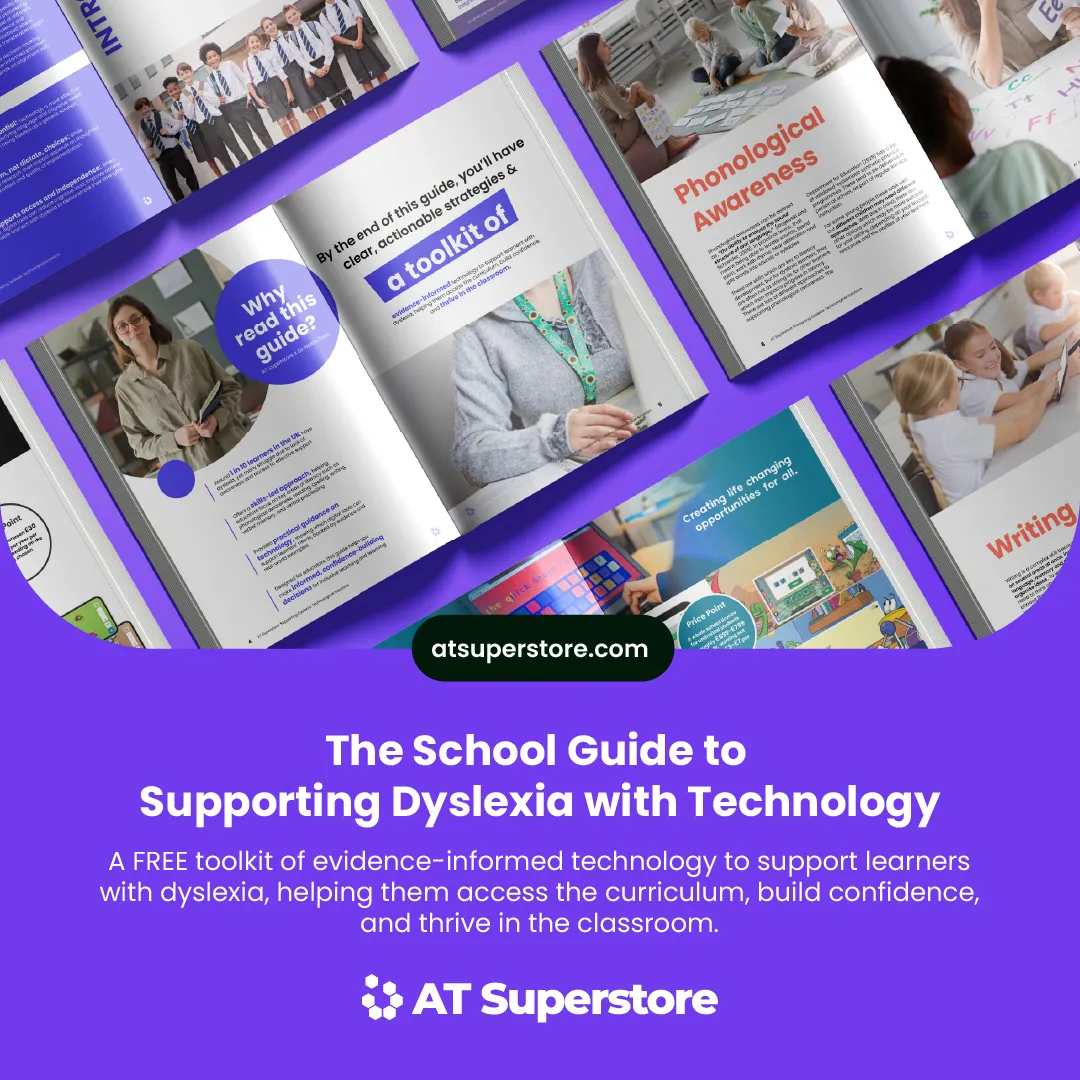
To learn more - download The School's guide to Dyslexia, written by Dr Helen Ross, Dyslexia Specialist.
Dyslexia and Tech in your Class
In your class there are young people who find literacy very difficult; whether or not they have a formal diagnosis, we can still address their needs. Whether it be reading, writing or spelling, there are tools available to you that don’t cost the earth and that can seamlessly blend into your toolkit as a teacher. It is important to remember that not all tools suit all learners. Technology should always complement high-quality teaching, assessment and professional judgement. We will take a look here at some freely available and low-cost technological solutions to support young people in school.
Reading
Within the operating systems of your school laptops or in the bank of iPads and in Office 365, there are read-aloud features that can be activated at no extra cost. These are powerful features that can make passages of text accessible for learners simply and quickly. Microsoft Lens or Google Lens can also take printed materials and turn them into pdf files, which can then be read aloud; again there is no extra cost for these apps within the operating system of your computer or tablet. If you want access to a screen filter, you can use Colorveil which is free as a download and filters the whole screen to a colour chosen by the user.
Writing and Spelling
Co-Writer Prediction is a powerful and low-cost AI support for writing. It predicts the words that learners are aiming for using the context, showing them on screen. It is particularly helpful on a iPad or other tablet computer, because the touch screen means young people can tap the word they want easily. It is low-cost and very accessible. Again, the accessibility features built into operating systems or Office 365 can come into their own here. If touch typing is tricky, there are other ways to use computers or tablets to write. They have speech-to-text features, where young people (and staff!) can dictate their ideas to their device, and the device will note it down. Spell and sense/grammar checkers then help young people refine and edit their work. The writing can then be read back to young people so they can check their work.
Organising
For children who like using mind maps and may want to have them written on ICT, OneNote can be really useful. As with the other elements of Windows, it is part of Office 365 and young people can draw on it, use the text features or call outs to make mind maps or organise their work as they find helpful. There are other free apps such as MindMup which is free and online. For organising schedules and deadlines using Outlook or Google calendar can be useful for older students; again the cost of these is very low versus the potential impact on the journey through school for those young people.
What works, how do I know and where do I go?
There are various places where you can find information about resources to support young people. They key thing you need to know is what those places are and how reliable they are. With budgets and purchasing power reducing, but needs becoming increasingly complex, having reliable, robust and evidence-based strategies to support children is vital.
The Education Endowment Foundation hosts a substantial bank of research on the impact of various types of resources across all phases of education. Resources are rated for their impact on progress, their cost and how they are implemented. There are guidance reports for teachers as well as opportunities to collaborate on current research projects. The research is carried out by various teams but is robust evaluation projects are well conceptualised, generating a strong evidence base.
Wikit- The International Centre for EdTech Impact was founded by a multi-disciplinary team, that wanted to link the best science of learning with the latest technologies so that educators know what works, how and why. The network is made up of academics, educators and other professionals working with industry to evaluate technologies and provide robust evidence of their effectiveness for learners.
The Cost of People and the Price of Tech
The assumption around technology is that it is always more expensive to buy than having a person available in class, or that technology is prohibitively expensive. However, this may not be the case. A calculation based on a cycle of GCSE examinations can be helpful for grounding and contextualising potential costs of technological versus ‘person-powered’ support for young people. This calculation is based on the following figures:
- The average hourly pay rate for a Teaching Assistant being roughly £11.40 (NEU, 2025), with the cost to schools being £18 per hour including on-costs.
- The average time spent in GCSE examinations being 31.5 hours (Clarke, 2024)
- Up to four students being supported by one reader (JCQ, no date)
- The cost of a Windows-based laptop being £149.99 (Game by Sports Direct, no date)
If a TA is supporting four children through an average series of GCSE examinations (as a reader for example), the cost per child for that support is £141.75. Given that a laptop was available for £149.99 at the time of writing, there is little substantive difference in the cost for the examination-based support to the school. However, the laptop would be able to be used elsewhere, and could provide young people with speech-to-text, text-to-speech, different sized writing on papers if pdfs are used. This is just within the regular Windows system features, without any additional cost-outlay! There are also free screen filters apps for students with visual stress (east-tec, no date).
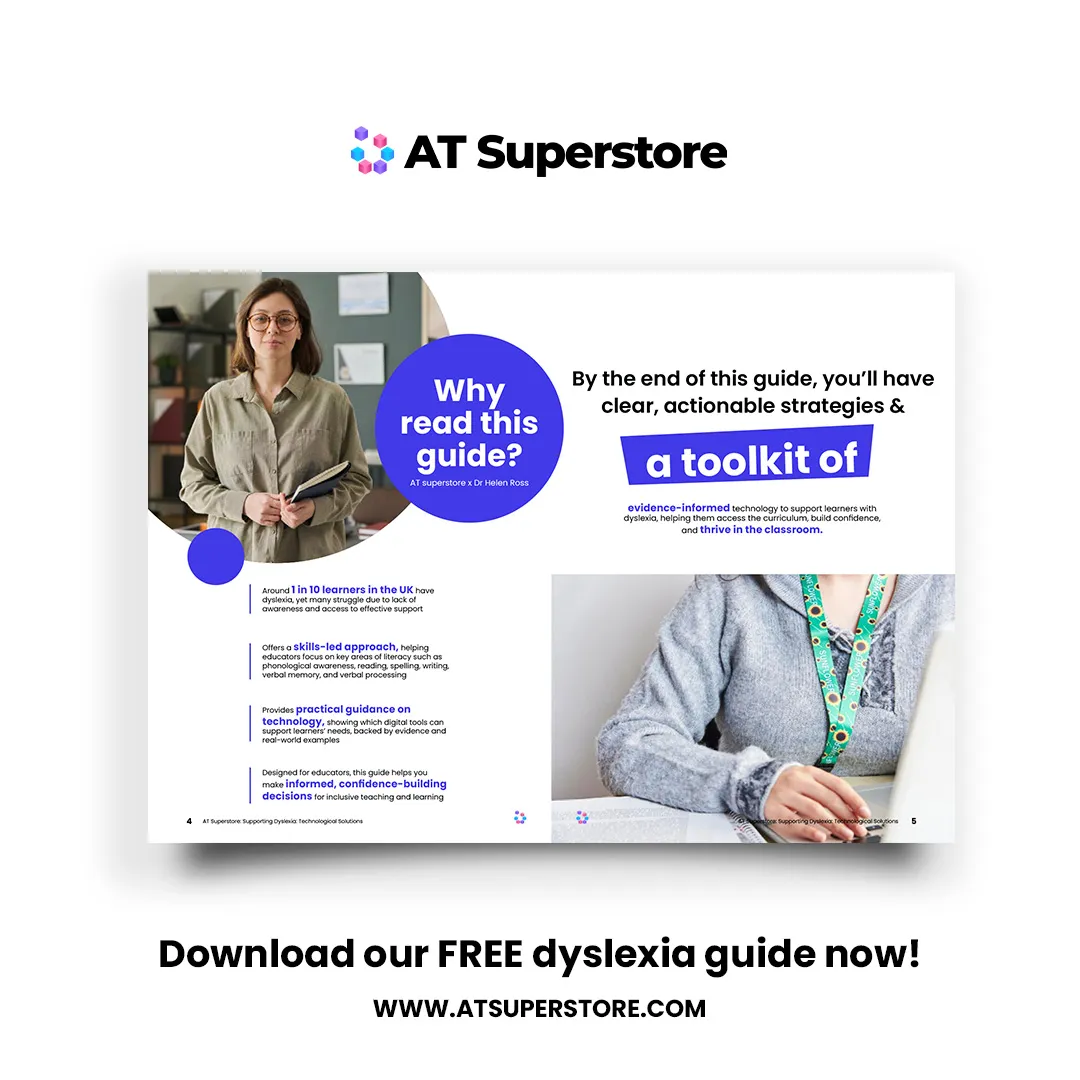
To learn more - download The School's guide to Dyslexia, written by Dr Helen Ross, Dyslexia Specialist.
References
Clarke, C. (2024) Striking the Balance A review of 11–16 curriculum and assessment in England. OCR, p. 120. Available at: https://www.ocr.org.uk/Images/717919-striking-the-balance.pdf?hsCtaAttrib=177138440350.
east-tec (no date) ColorVeil: Screen Filter for Eye Strain & Dyslexia - East-Tec. Available at: https://www.east-tec.com/colorveil/download/ (Accessed: 6 December 2025).
Game by Sports Direct (no date) EGL 14 Inch Laptop, SportsDirect.com. Available at: https://www.sportsdirect.com/egl-14-inch-laptop-727170 (Accessed: 6 December 2025).
JCQ Joint Council for Qualifications (no date) ‘Understanding the requirements for separate invigilation’. Available at: https://www.jcq.org.uk/exams-office/blogs/understanding-the-requirements-for-separate-invigilation/ (Accessed: 6 December 2025).
NEU (2025) Pay scales for support staff. Available at: https://neu.org.uk/advice/member-groups/support-staff/pay-scales-support-staff (Accessed: 6 December 2025).
Subscribe to our newsletter
The latest accessibility technology news, articles and resources, sent to your inbox weekly.
Images